
ASR Provider Setup
This page covers how to register, obtain credentials, and configure ASR providers in BiBi Keyboard (说点啥).
Before you start
- Open
Settings → Smart → Speech Recognition Settingsand select your provider under "Speech Recognition Provider". - Cloud providers usually require an
API Key/Access Token. - Local models require downloading/importing model files (first load may take a few seconds).
Security
API keys and access tokens are sensitive. Do not share them publicly. If you suspect leakage, revoke the key/token immediately and create a new one.
Provider overview
| Provider | Type | Streaming | Best for |
|---|---|---|---|
| SiliconFlow | Cloud | ❌ | Beginner-friendly, low cost |
| Volcengine | Cloud | ✅/❌ | Low-latency, real-time streaming |
| ElevenLabs | Cloud | ✅/❌ | High accuracy (model-dependent) |
| OpenAI (compatible) | Cloud | ✅/❌ | OpenAI/compatible file or Realtime transcription |
| OpenRouter | Cloud | ❌ | Use an OpenRouter API key with compatible ASR models |
| DashScope (Alibaba) | Cloud | ✅/❌ | Balanced accuracy and cost |
| Gemini | Cloud | ❌ | Small usage / file-based recognition |
| MiMo (Xiaomi) | Cloud | ❌ | MiMo v2.5 ASR / audio-understanding models |
| Soniox | Cloud | ✅/❌ | Stable streaming, international usage |
| StepAudio | Cloud | ❌ | StepFun online ASR, Chinese/English and ITN |
| Zhipu GLM | Cloud | ❌ | Simple integration, lower cost |
| Cohere | Cloud | ❌ | Cohere Transcribe file-based multilingual ASR |
| Local models (SenseVoice / FunASR Nano / Qwen3-ASR / Parakeet / FireRedASR V2 / X-ASR) | Local | Partial ✅ | Privacy-first, offline usage |
SiliconFlow
SiliconFlow provides a built-in free ASR option (no key required) and paid models (own key).
Quick start (no API key required)
- In
Settings → Smart → Speech Recognition Settings, select SiliconFlow - Keep the “Free ASR” toggles enabled
- Switch between the free models as needed:
FunAudioLLM/SenseVoiceSmall,TeleAI/TeleSpeechASR, and the XingChen series (XingChenAGI/XingChenASR-V3.2,XingChenASR-V3.2-Ultra,XingChenGSR-V1.0)
Use your own API key (optional)
With your own SiliconFlow API key, paid models are also available: Qwen/Qwen3-Omni-30B-A3B-Instruct, Qwen/Qwen3-Omni-30B-A3B-Thinking, and Qwen/Qwen3-ASR-1.7B.
- Sign up / log in: https://cloud.siliconflow.cn/
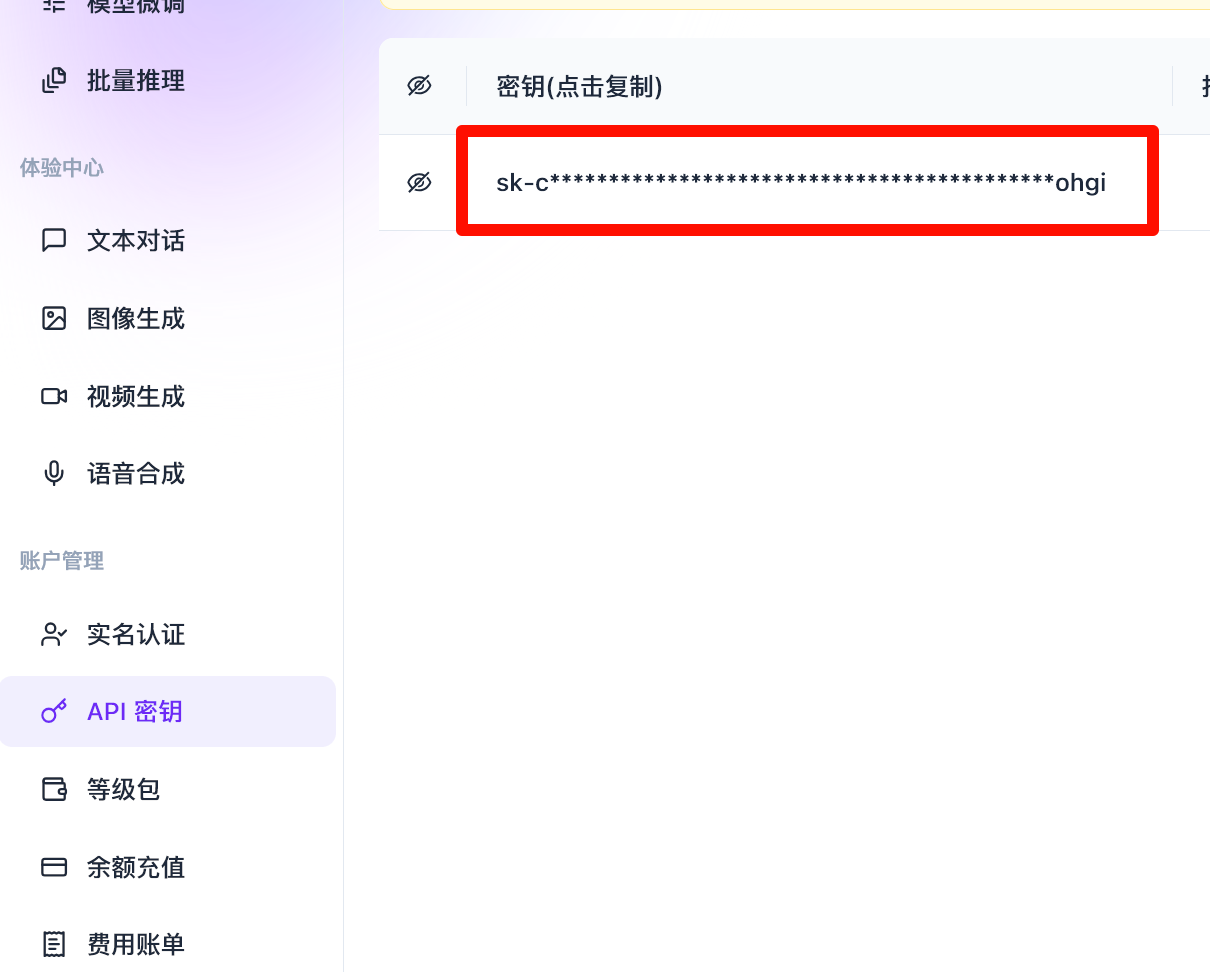
- Create an API key in the console
- Paste it into the SiliconFlow section in BiBi Keyboard
Volcengine
Volcengine (Doubao Voice) has strong Chinese recognition and supports both streaming and non-streaming.
1. Create an app and enable ASR services
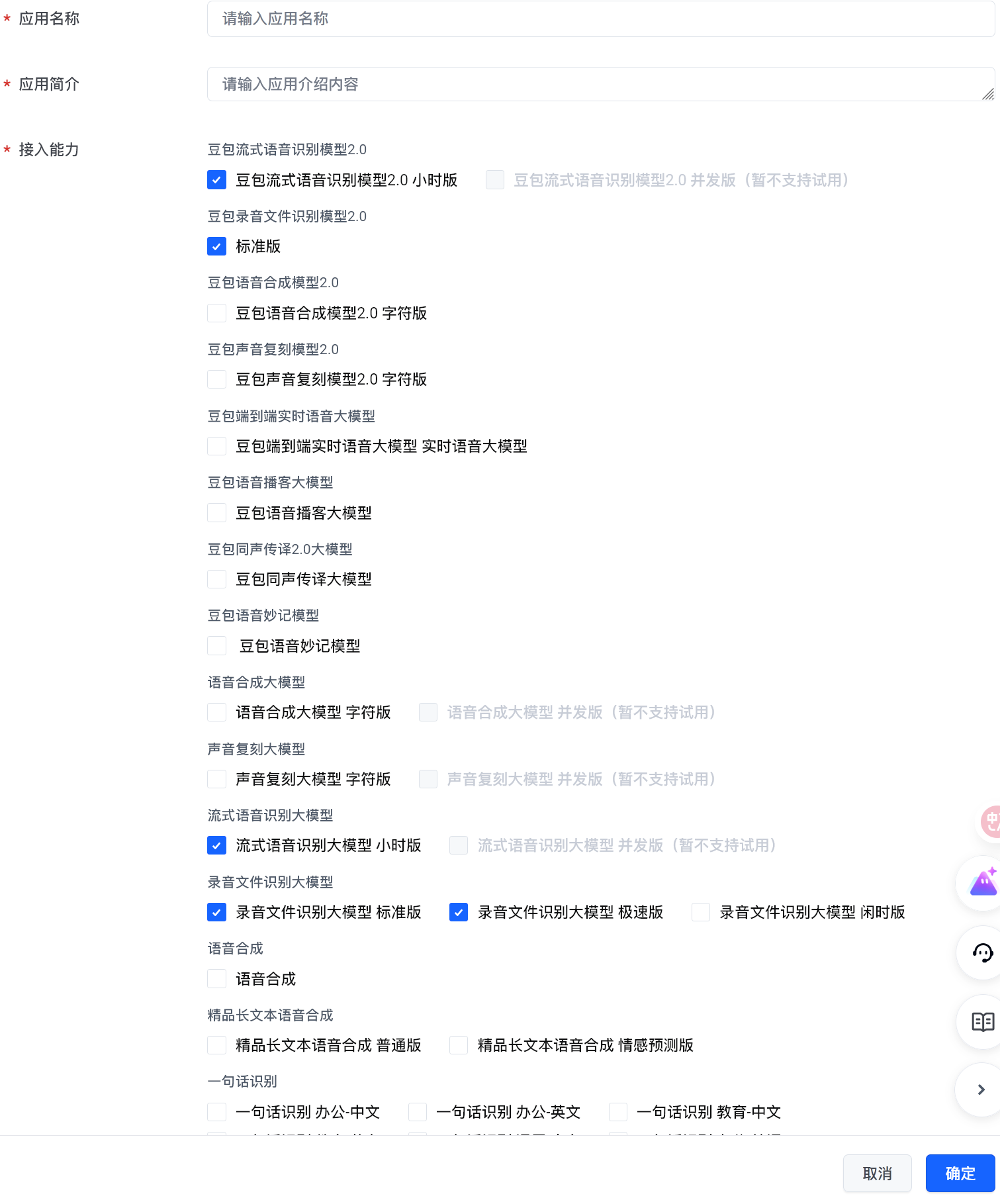
- Open the console: https://console.volcengine.com/speech/app?opt=create
- Enable these capabilities:
Streaming Speech Recognition Large ModelAudio File Recognition Large Model (Express)
2. Get APP ID and Access Token
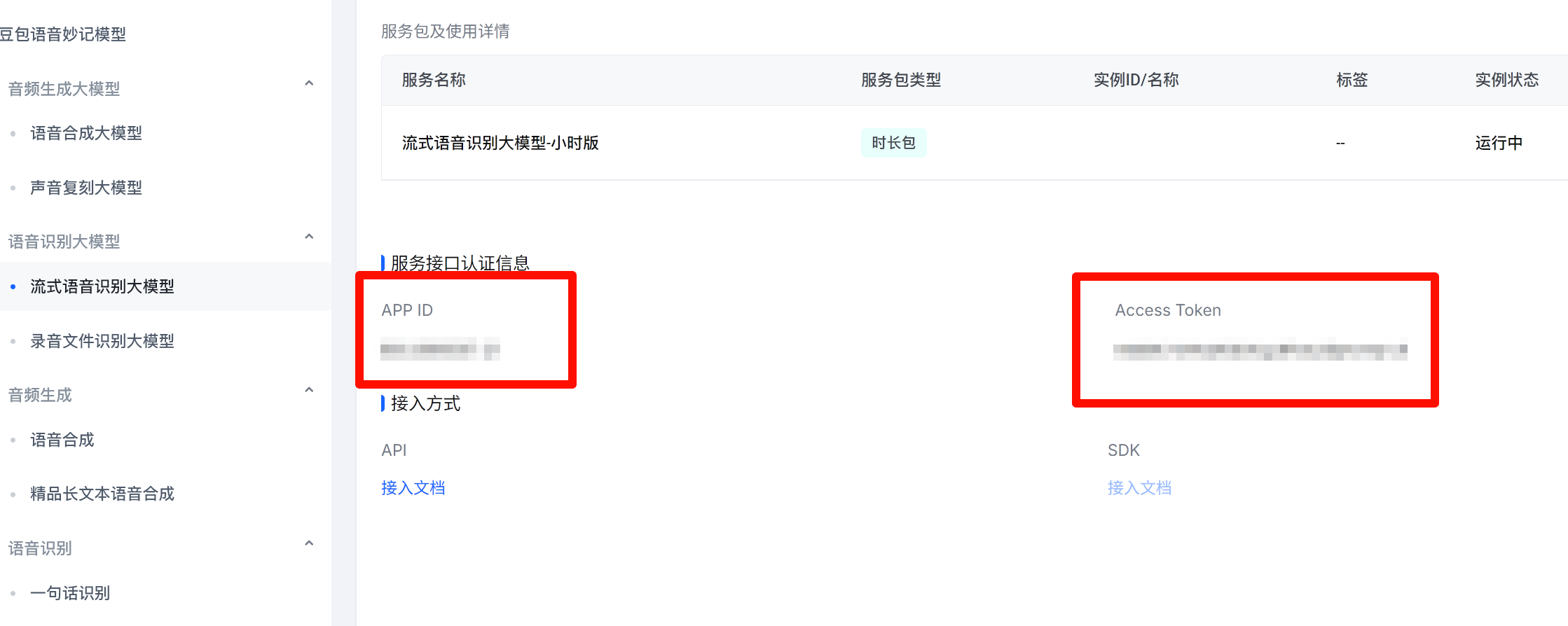
- Open the service page: https://console.volcengine.com/speech/service/10011
- Copy
APP IDandAccess Tokenunder the credential section
3. Configure in BiBi Keyboard
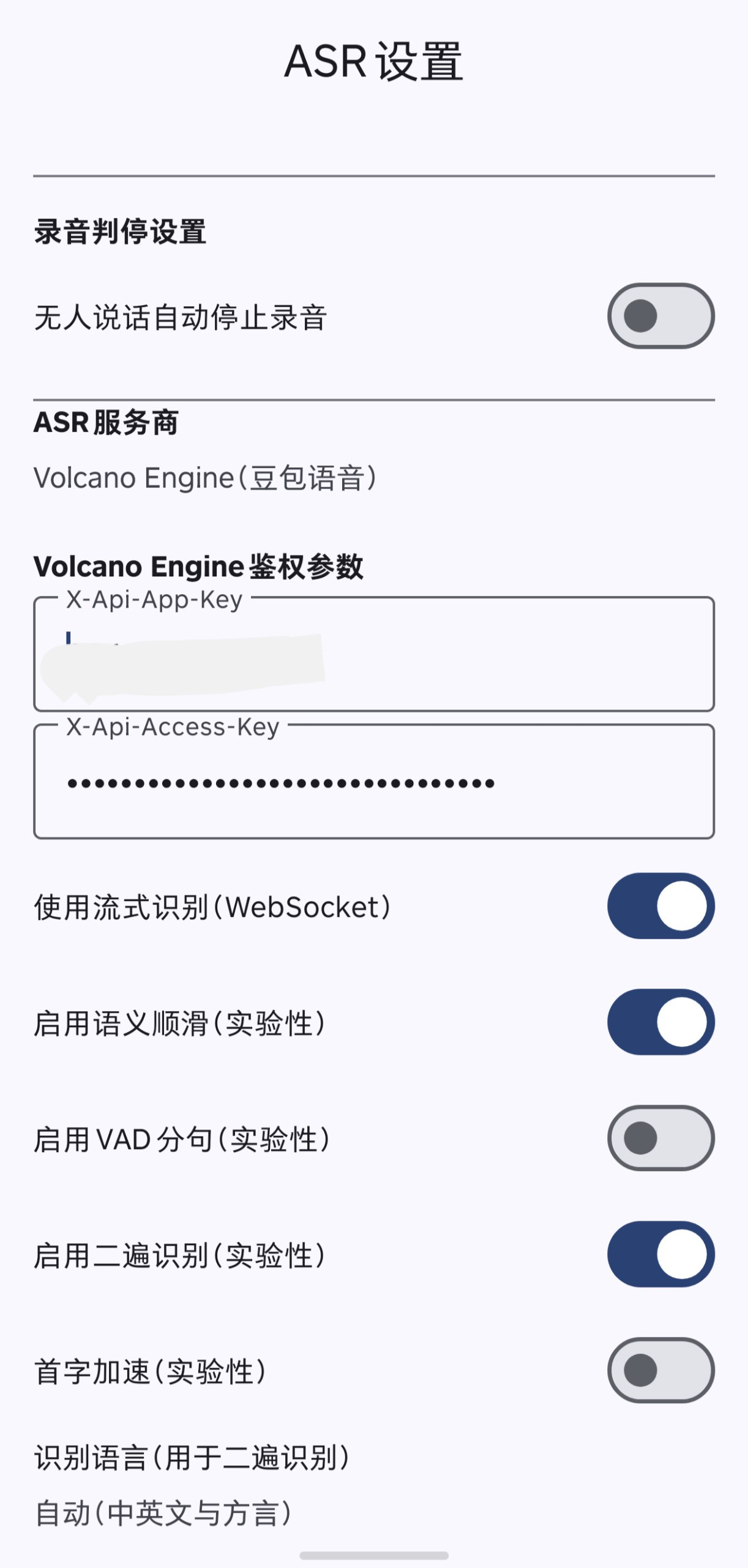
- Open
Settings → Smart → Speech Recognition Settings - Select Volcengine
- Paste
APP IDintoX-Api-App-Key - Paste
Access TokenintoX-Api-Access-Key - Pick a Doubao model directly under
Recognition model:- Streaming (live results, needs a stable network):
Doubao streaming speech recognition 2.0(default),Doubao streaming speech recognition 1.0 - Non-streaming (uploads the full recording after you stop):
Doubao standard file recognition 2.0,Doubao standard file recognition 1.0,Doubao turbo file recognition 1.0(fastest)
- Streaming (live results, needs a stable network):
Note
If you enabled both streaming and audio-file recognition when creating the app, they share the same credentials.
ElevenLabs
ElevenLabs scribe_v1 is non-streaming only; scribe_v2 is streaming only.
Get an API key
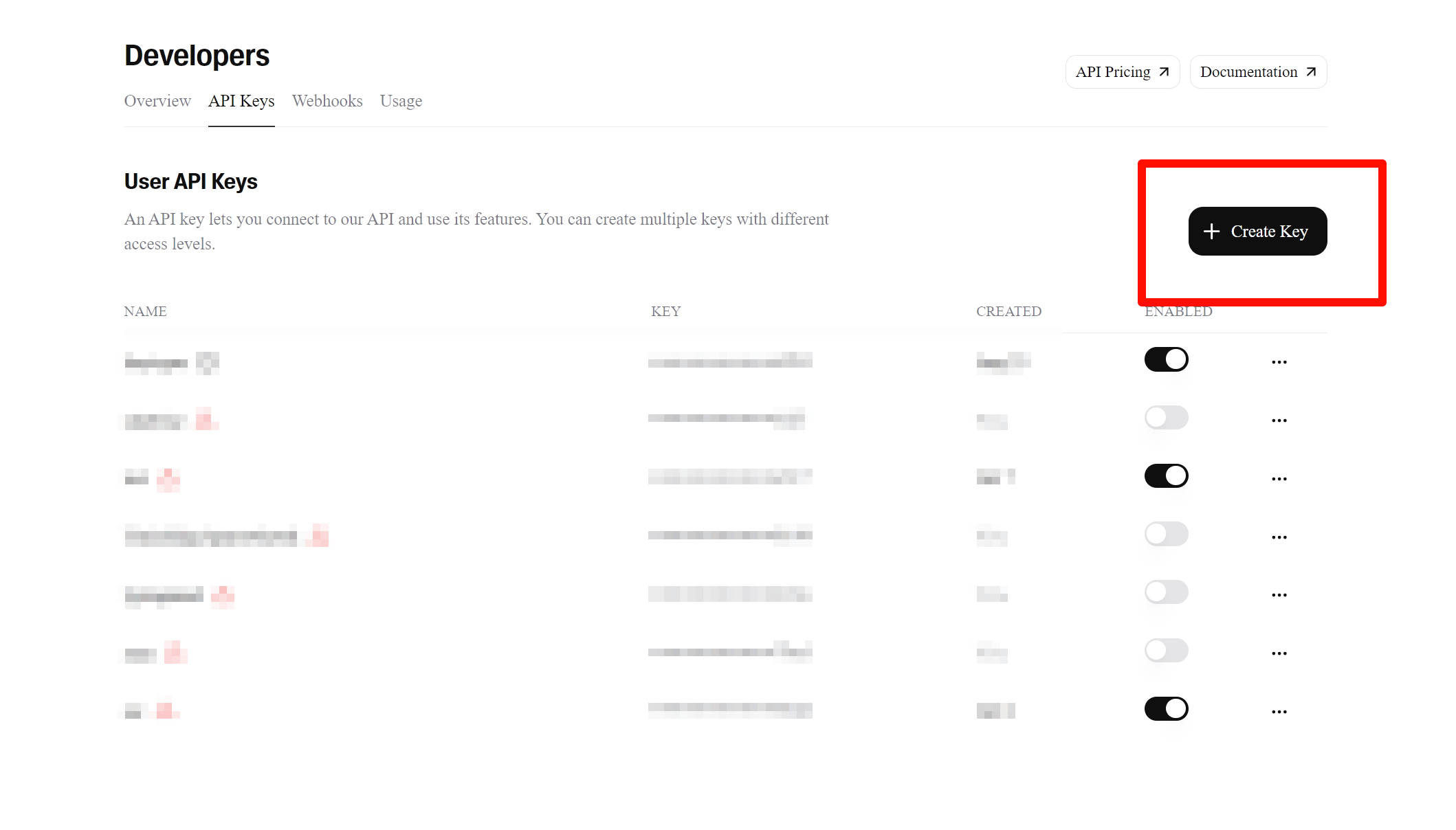
- Open: https://elevenlabs.io/app/settings/api-keys
- Create an API key
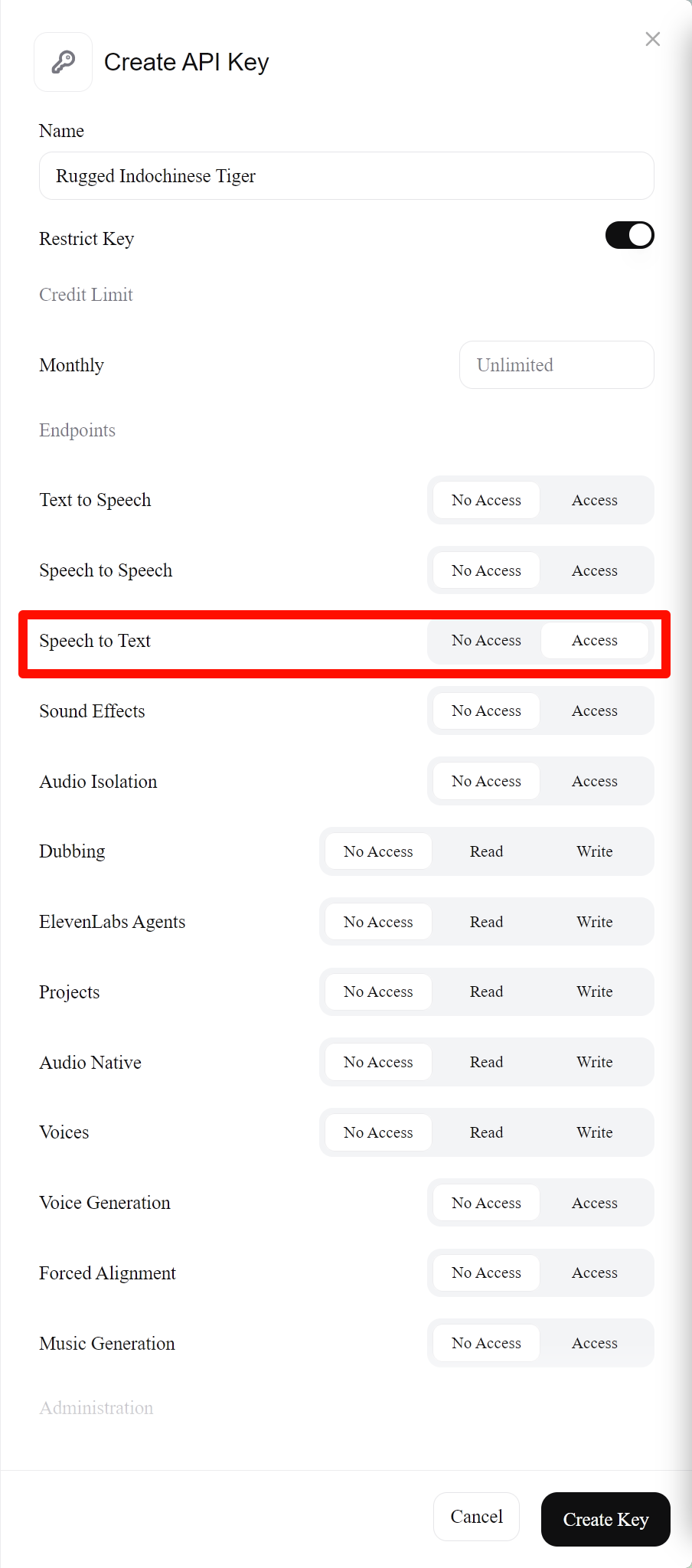
- Enable
Speech to Textpermission for the key
OpenAI (compatible endpoints)
The OpenAI provider supports OpenAI-format transcription endpoints, plus compatible third-party Audio Transcriptions, Chat Completions, or Realtime endpoints.
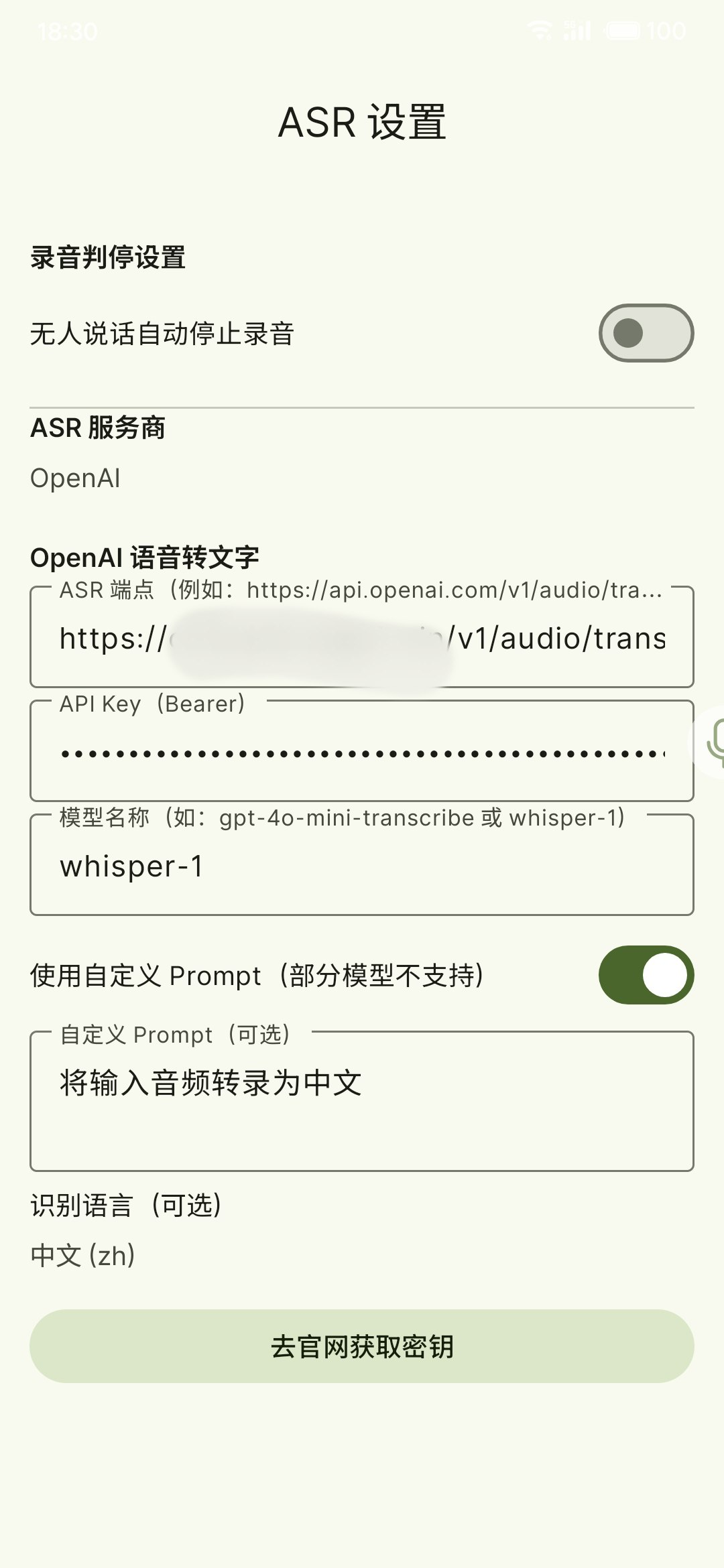
- In
Settings → Smart → Speech Recognition Settings, select OpenAI - Use "Add channel" to create one or more OpenAI ASR configurations, for separating official endpoints, proxy endpoints, or different models
- Fill in:
ASR Endpoint(e.g.https://api.openai.com/v1/audio/transcriptions,https://api.openai.com/v1/chat/completions, or a compatible endpoint)API Key(sent automatically with requests; no extra configuration needed)Model name(e.g.gpt-4o-mini-transcribe/whisper-1)
- If the endpoint is a multimodal Chat Completions API, enable
Use Completions APIand optionally fill in a custom prompt - If the endpoint supports the Realtime API, enable "Streaming (Realtime)" for live partial results
Which OpenAI API should I use?
Use audio/transcriptions for standard transcription models, chat/completions for multimodal models that accept audio input, and Realtime when you need live partial results. You should check the API format with your OpenAI provider.
Custom compatible endpoints
For custom compatible audio/transcriptions endpoints, BiBi Keyboard uploads WAV audio to improve compatibility. In this case, "Compress audio before upload" does not apply to that custom OpenAI transcription endpoint.
OpenRouter
OpenRouter lets BiBi Keyboard call compatible ASR / multimodal transcription models through OpenRouter. It is currently used in non-streaming mode.
- Create an API key in OpenRouter Keys
- In
Settings → Smart → Speech Recognition Settings, select OpenRouter - Fill in:
ASR Endpoint(usually keep the default or use a compatible/audio/transcriptionsendpoint)OpenRouter API KeyModel(for exampleqwen/qwen3-asr-flash-2026-02-10)
- Save, then use
Settings → Input → Recording Testto verify the setup
DashScope (Alibaba Bailian / Qwen)
DashScope offers good accuracy and cost efficiency, with partial streaming support.
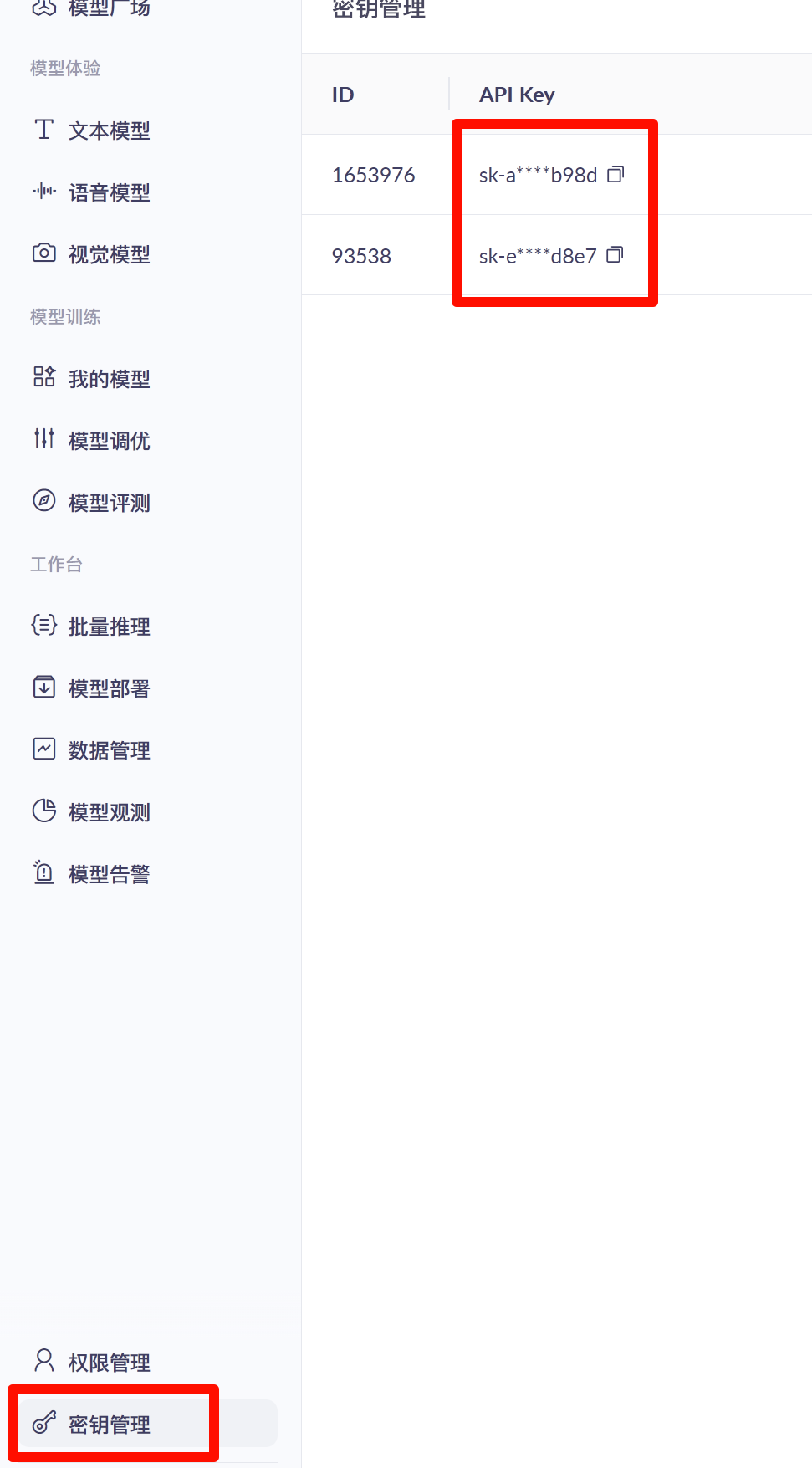
1. Create an API key
- Open: https://bailian.console.aliyun.com/?tab=model#/api-key
- Create and copy an API key
2. Configure in BiBi Keyboard
- Open
Settings → Smart → Speech Recognition Settingsand select DashScope - Paste the API key and save
- Choose a model:
- Streaming:
Qwen-Audio-3.0-ASR-Flash-Streaming(default),Fun-ASR-Realtime, orQwen3-ASR-Flash-Realtime - Non-streaming:
Qwen-Audio-3.0-ASR-Flash(default),Fun-ASR-Flash,Qwen3-ASR-Flash,Qwen3.5-Omni-Flash, orQwen3.5-Omni-Plus
- Streaming:
Gemini
Gemini is commonly used for file-based recognition and small usage.
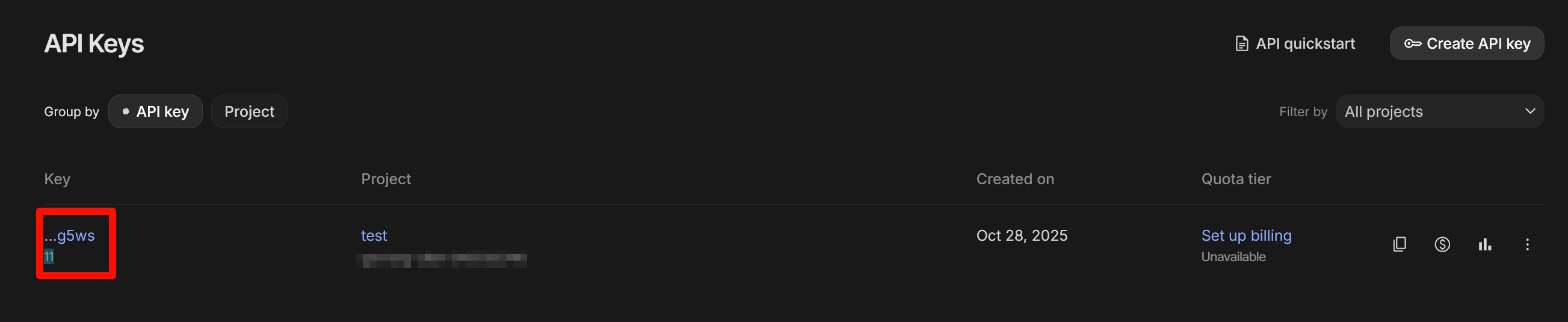
- Open: https://aistudio.google.com/api-keys
- Create and copy a key
- Paste it into the Gemini section in BiBi Keyboard
Call mode
Call mode offers two transcription paths, both non-streaming (audio is uploaded once after recording stops):
- Gemini: multimodal audio understanding with a Gemini model; enable "Reduce thinking" for faster, closer-to-verbatim results.
- Transcribe: the dedicated Gemini Transcribe API, sending the audio inline in a single request. The default model is
gemini-3.5-transcribe. Extra options:- Recognition language: Automatic, Mandarin Chinese, Traditional Cantonese, US English, Japanese, Korean, or a custom BCP-47 code
- Smart transcription: when enabled, removes fillers, resolves speech corrections, and restructures formatting (may change the verbatim content); when disabled, keeps verbatim transcription including fillers, repetitions, and false starts
MiMo (Xiaomi)
MiMo supports mimo-v2.5-asr and mimo-v2.5 audio-understanding models.
- Prepare a MiMo API key
- In
Settings → Smart → Speech Recognition Settings, select MiMo - Choose an endpoint preset:
- Token Plan (Mainland China / Singapore / Europe)
- Pay-as-you-go
- Custom endpoint
- Fill in the MiMo API key for the current endpoint. API keys are stored separately per endpoint preset, so re-check the active slot after switching endpoints
- Choose a model and recognition language (Auto / Chinese / English)
- For the
mimo-v2.5audio-understanding model, you can fill in a System Prompt; enable "Disable thinking" if you do not need reasoning output
Soniox
Soniox supports both streaming and non-streaming; streaming is relatively stable.
Get an API key
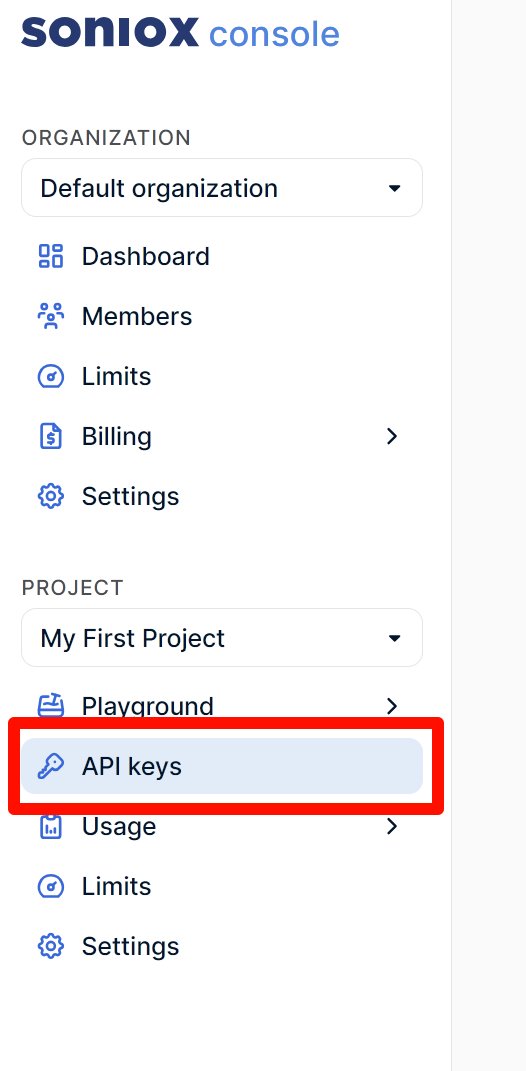
- Log in: https://console.soniox.com
- In your project, go to
API keys - Create and copy the API key, then paste it into BiBi Keyboard
Recognition mode
In Soniox settings, choose the endpoint detection behavior under "Recognition mode":
- Low latency: faster endpoint detection, best for realtime input
- Default: balances latency and accuracy
- High accuracy: more sensitive endpoint detection, best for accuracy-sensitive scenarios
StepAudio
StepAudio is StepFun's online ASR service. In BiBi Keyboard it is currently used in non-streaming mode.
- Create an API key in the StepFun console: https://platform.stepfun.com/
- In
Settings → Smart → Speech Recognition Settings, select StepAudio - Choose an endpoint preset:
- Pay-as-you-go
- Coding Plan
- Custom
- Paste the
StepFun API Keyfor the current endpoint. API keys are stored separately per endpoint preset, so re-check it after switching endpoints - Choose the
stepaudio-2.5-asrmodel, language (Chinese / English / Auto), and enable ITN if needed
Zhipu GLM
Zhipu GLM is simple to integrate and usually used as non-streaming.
- Get an API key: https://bigmodel.cn/usercenter/proj-mgmt/apikeys
- Paste it into the Zhipu section in BiBi Keyboard
Cohere
Cohere Transcribe is used as a non-streaming file recognizer in BiBi Keyboard.
- Sign in to the Cohere Dashboard and create/copy a Trial API key
- Open
Settings → Smart → Speech Recognition Settingsand select Cohere - Enter the
Cohere API Key - Choose a model:
cohere-transcribe-03-2026: general multilingual modelcohere-transcribe-arabic-07-2026: Arabic/English model
- Select the language spoken in the recording. If you enter a custom model ID, also verify that the model accepts the selected language code
Free limit
Cohere Trial API Key is limited to 5 RPM (requests per minute).
Language selection
The general model offers Chinese, English, Arabic, Japanese, Korean, and several European languages. The Arabic model offers Arabic and English only.
Local model setup
Local models are ideal for offline usage and privacy. Each model trades off speed, quality, and streaming support.
Model selection tips
- SenseVoice(recommended): non-streaming; lightweight fast and balanced; supports language settings
- FunASR Nano: non-streaming; language selection, native ITN, and MLT Nano multilingual variant
- Qwen3-ASR(recommended): non-streaming; local 0.6B / 1.7B models, good Chinese recognition, optional rule-based ITN
- Parakeet: non-streaming; V3 for several European languages, V2 for English
- FireRedASR V2: non-streaming / pseudo-streaming; replaces the old TeleSpeech local engine
- X-ASR(recommended): local streaming; Chinese/English 480ms model with thread count, unload policy, and optional ITN
Download in-app (recommended)
- Select a local provider (e.g. SenseVoice / X-ASR)
- In the model manager, choose a variant and download
- If notification permission is granted, you can track download/unzip progress in notifications
If the download is canceled or interrupted, the incomplete download task is cached locally. Downloading the same model again attempts to resume from that point. Partial downloads are kept for up to 7 days with a total cache limit of about 2 GB; older files are removed first. If the source does not support resuming, the app automatically downloads the full file again.
Reduce first-recognition latency
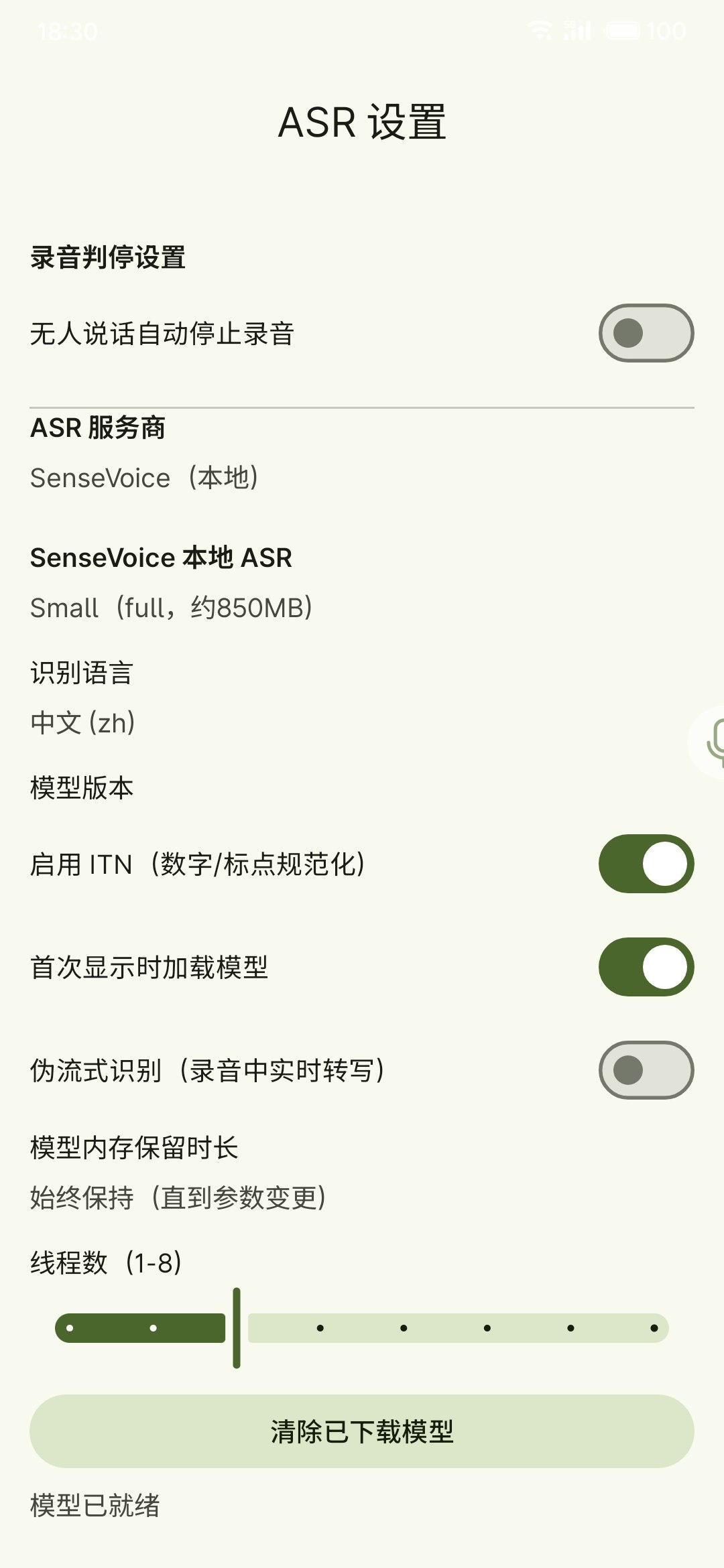
Local models may take a few seconds on first load. Every local provider supports an "Aggressive model loading" option: when enabled, the model is preloaded as soon as the keyboard or floating ball is first shown, reducing the wait for the first recognition.
Import from local files (optional)
If you prefer adding models from local files, download the ZIP first, then choose "Import from local" in the model manager.
Direct links
The links below point to BiBi-Keyboard model ZIPs. If you see 404 or slow downloads, use the models page (Releases: models) or a GitHub mirror site.
SenseVoice (non-streaming)
- small-int8 (~153MB): sherpa-onnx-sense-voice-zh-en-ja-ko-yue-int8-2024-07-17.zip
- small-fp32 (~980MB): sherpa-onnx-sense-voice-zh-en-ja-ko-yue-2024-07-17.zip
X-ASR (streaming)
- Chinese/English 480ms (~530MB): sherpa-onnx-streaming-x-asr-480ms-zh-en.zip
FireRedASR V2 (non-streaming / pseudo-streaming)
- Zh + En CTC int8 (~740MB): sherpa-onnx-fire-red-asr2-ctc-zh_en-int8-2026-02-25.zip
FunASR Nano (non-streaming)
- int8 (~690MB): sherpa-onnx-funasr-nano-int8-2025-12-30.zip
- MLT Nano int8 (~690MB): sherpa-onnx-funasr-mlt-nano-int8-2026-03-21.zip
Qwen3-ASR (non-streaming)
- 0.6B int8 (~806MB): sherpa-onnx-qwen3-asr-0.6B-int8-2026-03-25.zip
- 1.7B int8 (~2.0GB): sherpa-onnx-qwen3-asr-1.7B-int8-2026-08-04.zip
Parakeet (non-streaming)
- 0.6B V3 int8 (~456MB): sherpa-onnx-nemo-parakeet-tdt-0.6b-v3-int8.zip
- 0.6B V2 int8 (~451MB): sherpa-onnx-nemo-parakeet-tdt-0.6b-v2-int8.zip